
1What the AI Dialer does
The AI Dialer works through a queue of your leads. On each call it introduces itself, follows your script, and collects pre-application details like coverage goals, beneficiaries, health and medications. When the conversation is done it either transfers the call to your phone or books a callback, depending on the mode you pick.
Everything it learns is saved on the lead, so you walk into the transfer or the callback already knowing the client. The Power Dialer, for calls you make yourself, is separate and doesn't use AI Credits.
2Before you start
Open AI Dialer in the sidebar. The Launch Checklist at the top shows the four things the AI Dialer needs. Anything that isn't ready has a Not ready → link that takes you straight to the fix.
- Phone Number. The number the AI calls from. Your plan includes 3, and you choose the active one under Phone Numbers.
- AI Script. A script for each lead type you'll call. The Wynlo recommended script works out of the box.
- Leads in Queue. Leads you've imported that the AI is allowed to call.
- Call Credits. A positive AI Credits balance. Add credits on the AI Credits page.

The first time you use the AI Dialer, Wynlo asks you to confirm a one-time acknowledgment about AI outbound calling. The AI only calls leads you have permission to call, which you confirm when you import them. If you imported leads before that confirmation existed, the AI Dialer shows a card that lets you cover those existing leads.
3Pick your script and voice
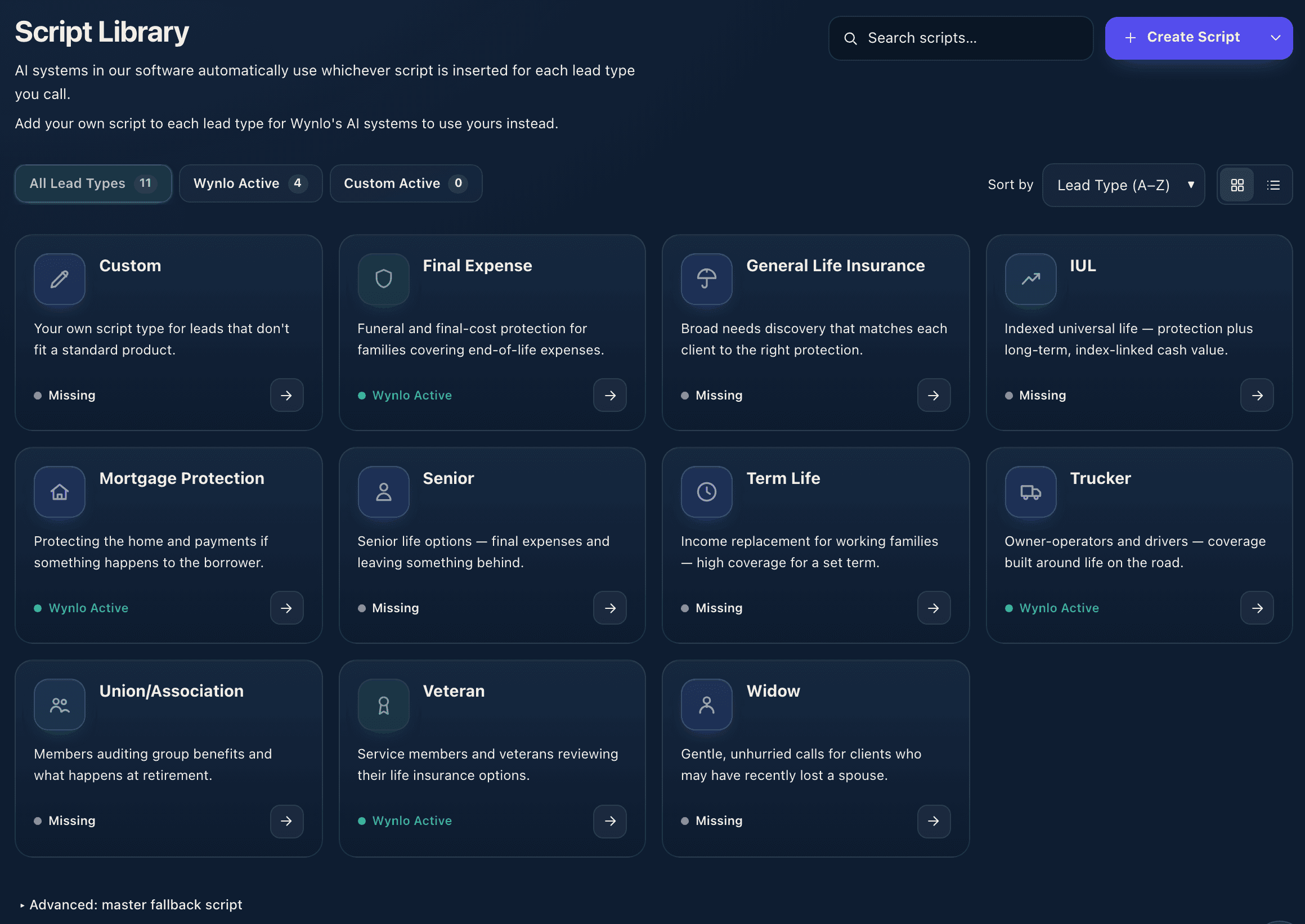
Open AI Script in the sidebar. The Script Library has a card for each lead type, such as Final Expense, Mortgage Protection, IUL or Veteran. Each card shows whether it uses the Wynlo recommended script, your own custom script, or is missing one.
- Choose Use Wynlo Recommended to use the script Wynlo recommends for that lead type.
- To use your own words, edit the script and choose Use This Script. Saving a draft doesn't activate it.
- The AI picks the script that matches each lead's lead type. A lead type with no script is skipped.
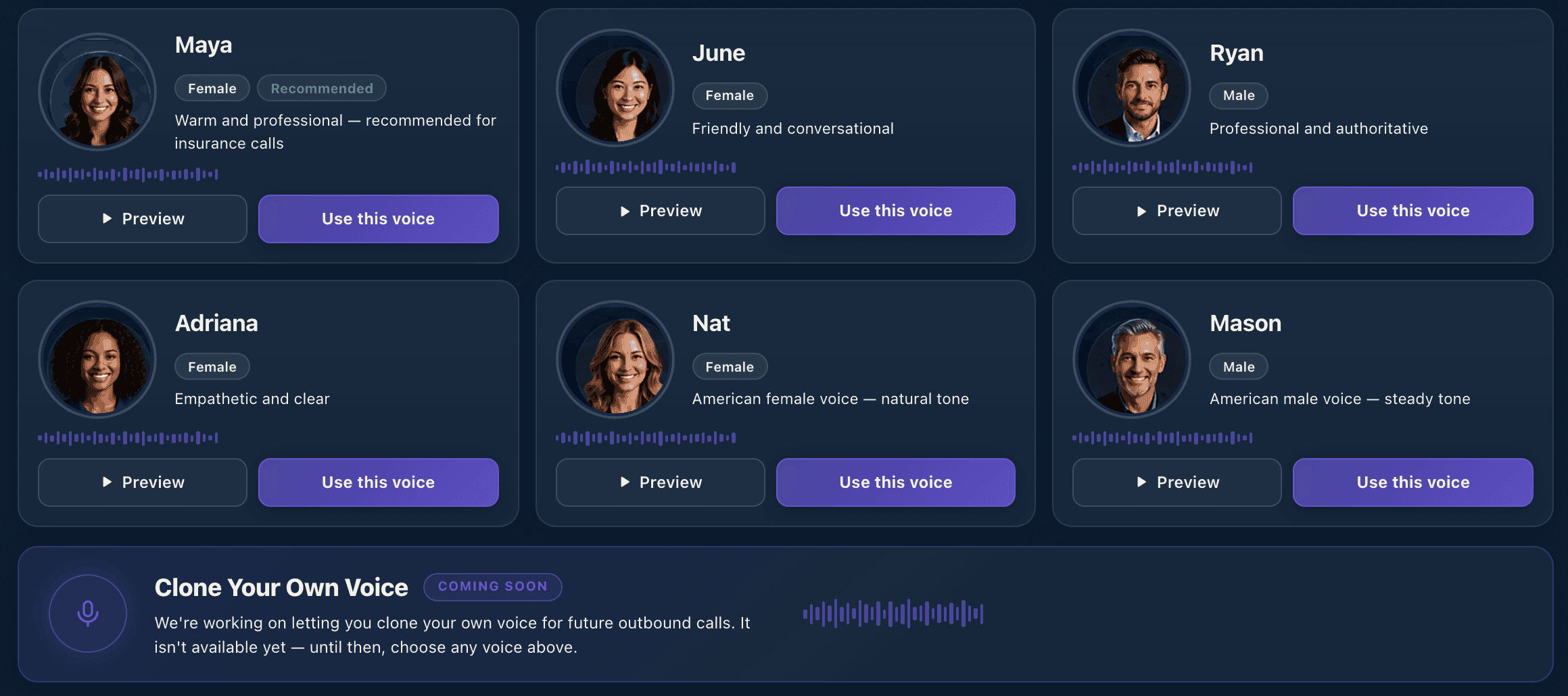
Under AI Voice, press Preview to hear each voice and Use this voice to pick one. Maya is recommended.
4Choose what happens after the call
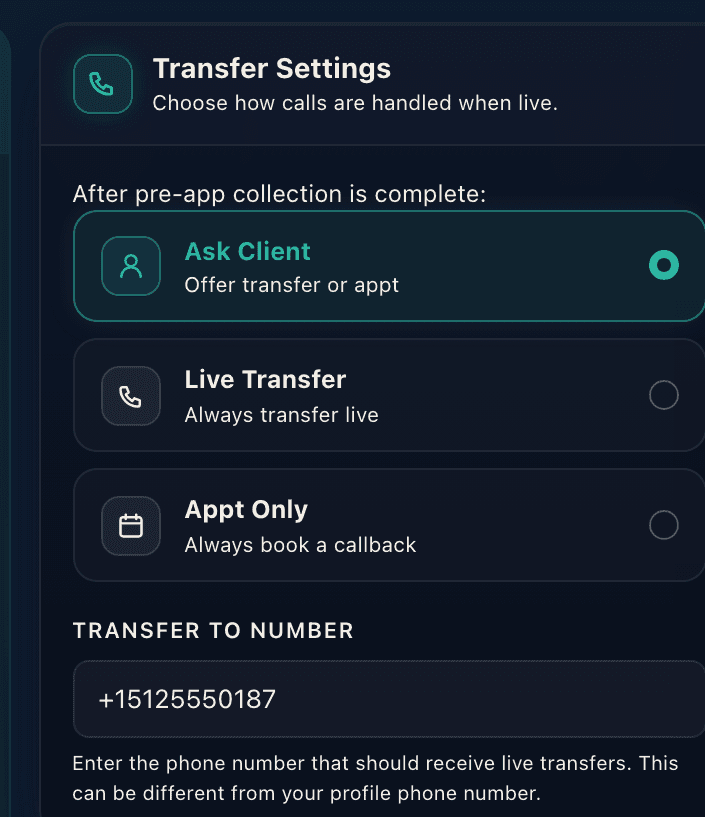
In Transfer Settings on the AI Dialer page, choose what the AI does once it has collected the pre-application details. Your choice saves automatically.
Ask Client
The AI offers the client a choice: talk to you now, or book a callback at a time that suits them.
Live Transfer
The AI always transfers the call to you live.
Appt Only
The AI always books a callback. No live transfers.
For Ask Client and Live Transfer, enter the phone you'll answer in Transfer to Number. It's the same number as Forward To under Phone Numbers → Call Forwarding, so changing one changes both.
5Choose who the AI calls
Under Choose who AI calls, narrow the queue by Lead types and States, or search by name or phone. Leads to include lets you call New + Dialed leads, New only, or Dialed only. The eligible count updates as you go.
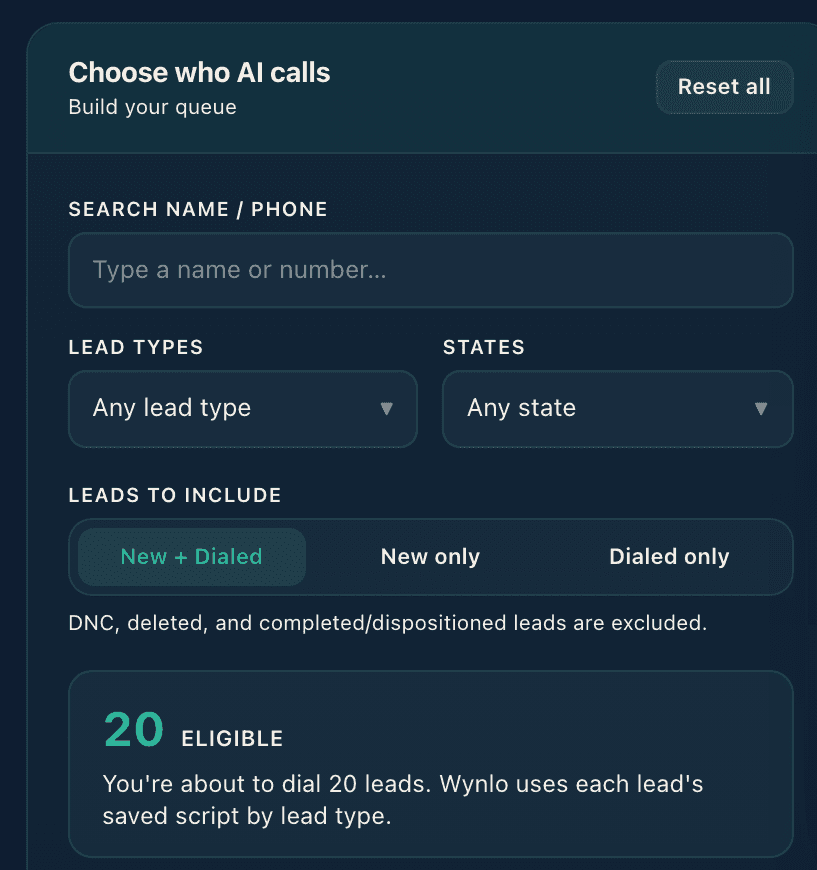
Some leads are always left out, so you don't have to filter them yourself:
- Leads marked DNC, deleted leads, and leads you've already closed out with a disposition.
- Leads outside calling hours in their own time zone. The AI only calls during allowed hours, and some states have tighter hours or limits on how often a lead can be called.
- Leads whose time zone Wynlo can't work out from their details.
- Leads with no calling permission on record, and lead types with no script.
After three AI attempts without reaching someone, the lead moves to Manual Follow Up so you can try them yourself.
6Start the AI Dialer
Press Start AI Dialer. In the Deploy AI Agent window, choose how much to run: a Budget in dollars of AI Credits, or a Lead Count. Then press Launch AI.
- With Ask Client or Live Transfer, the AI makes one call at a time and moves on to the next lead by itself, so a transfer never collides with another.
- With Appt Only, several calls can run at once. If more leads are waiting, the AI Dialer tells you, and pressing Start again continues.
- Pause stops new calls. Calls already in progress finish normally. Press Start to pick up where you left off.
- The AI Dialer makes up to 500 AI calls a day.
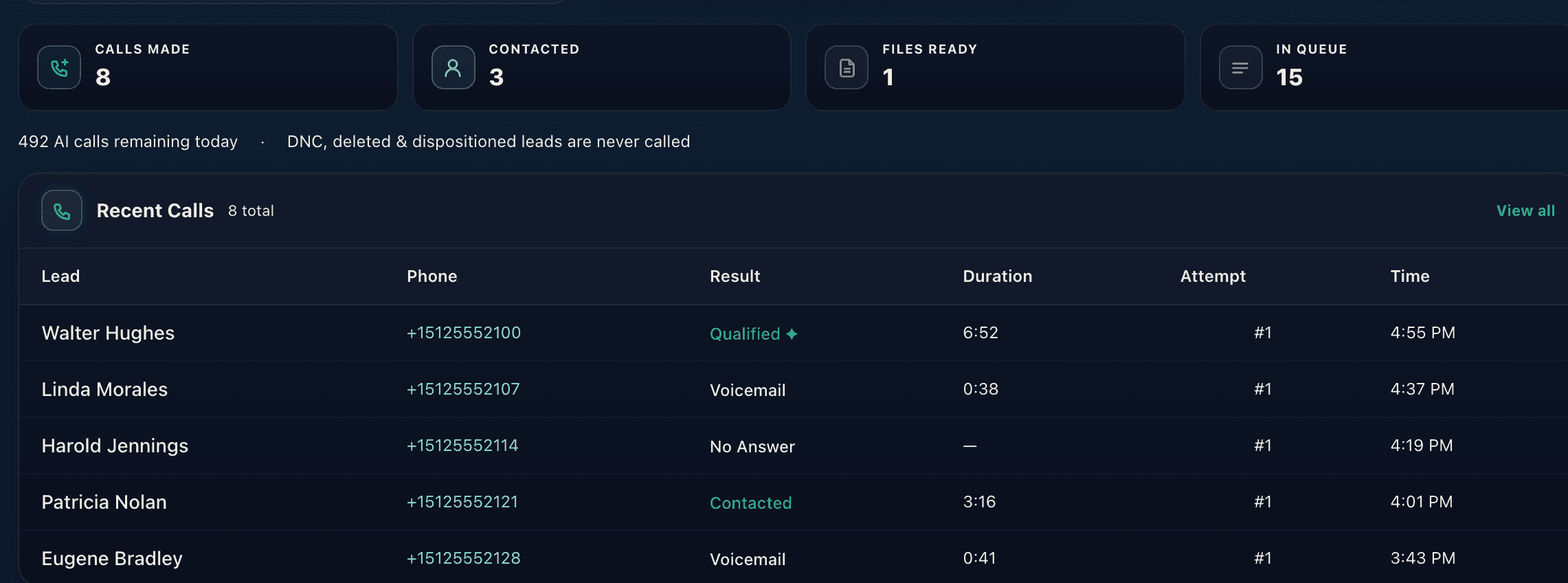
AI Credits are only used for the AI Dialer. Connected calls are charged from your balance by talk time. Calls that never connect aren't charged.
7Take live transfers
If you use Ask Client or Live Transfer, open Live Transfers in the sidebar before you start, and keep it open. When a client is on the way, the page shows who's calling and everything the AI collected, so you can read it while you pick up the phone.
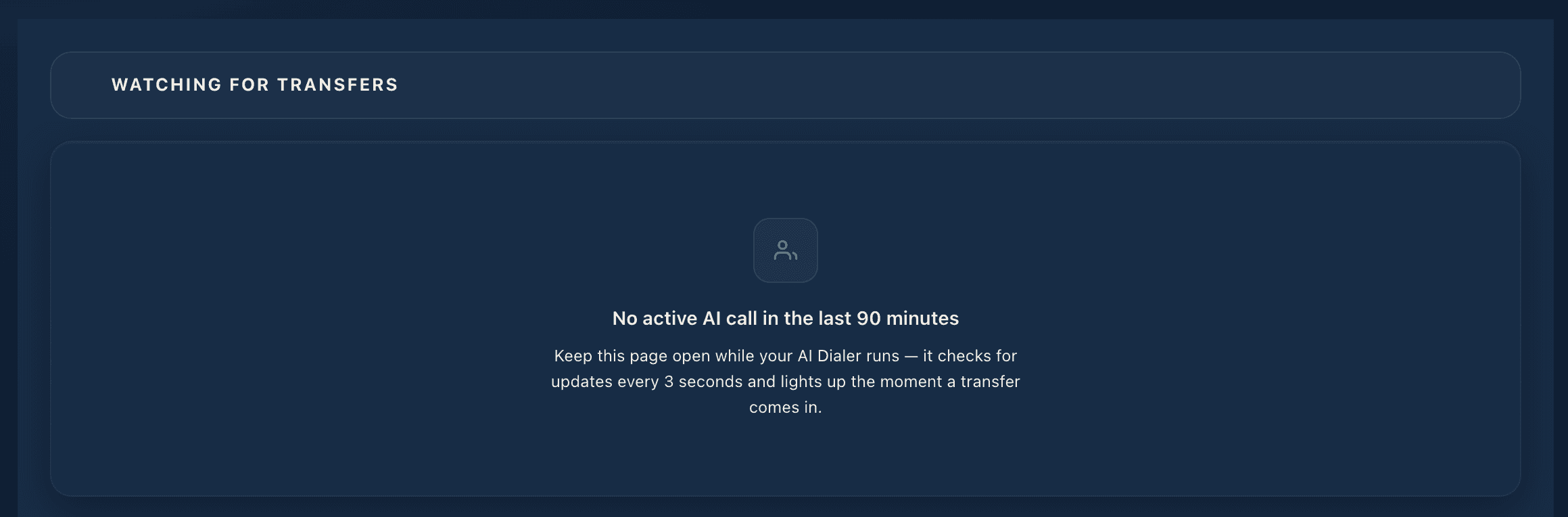
After the call, use Mark Sold if you closed it, or Clear · Next → to get ready for the next transfer. With Appt Only, this page stays empty. Your callbacks are on the calendar instead.
8Find what the AI collected
- Files Ready in the sidebar lists leads whose pre-application details are complete.
- On each lead, the Pre-App File tab has what the AI collected: the client's reason for coverage, coverage goal, beneficiaries, health conditions, medications, height and weight, tobacco use and the rest.
- Booked callbacks go on the lead and on your Wynlo Calendar. No outside calendar is needed.
- Transcripts of AI calls are in Call Intelligence. The AI Dialer saves transcripts, not audio recordings.
9Tips and common questions
- Start with a small run. Launch a small budget or lead count first, then read a few transcripts to hear how your script lands.
- Keep your transfer number answered. A live transfer only helps if you pick up.
- A Launch Checklist item says Not ready. Follow its link. It goes straight to the page that fixes it.
- The button says AI Setting Up. Your number is still being set up for AI calling. The Power Dialer works in the meantime.
- The button says No Credits. Add AI Credits, then start again.
- Fewer eligible leads than you expected. Check the Leads to include tab and your filters, and remember that leads outside calling hours are skipped until they're back in hours.
Still stuck? Send us the details and we'll get back to you by email.
Contact support